You know the feeling. You're deep in a coding session, jumping between your editor, the browser, terminal output, and documentation — all crammed onto a single screen. Or maybe you're a designer trying to reference a mood board while building out a layout, and there's simply nowhere to put everything. The solution is obvious: you need more screen real estate.
The problem? External monitors are expensive, they're heavy, and they're not exactly something you toss in your bag on the way to a coffee shop. Most people end up with a nice monitor that lives permanently on their desk — useful at home, useless everywhere else.
But here's the thing: there's a good chance you already own the perfect second display. It's sitting right there on your desk, or tucked in your bag.
Your Tablet Is Already a Screen — Let It Be One
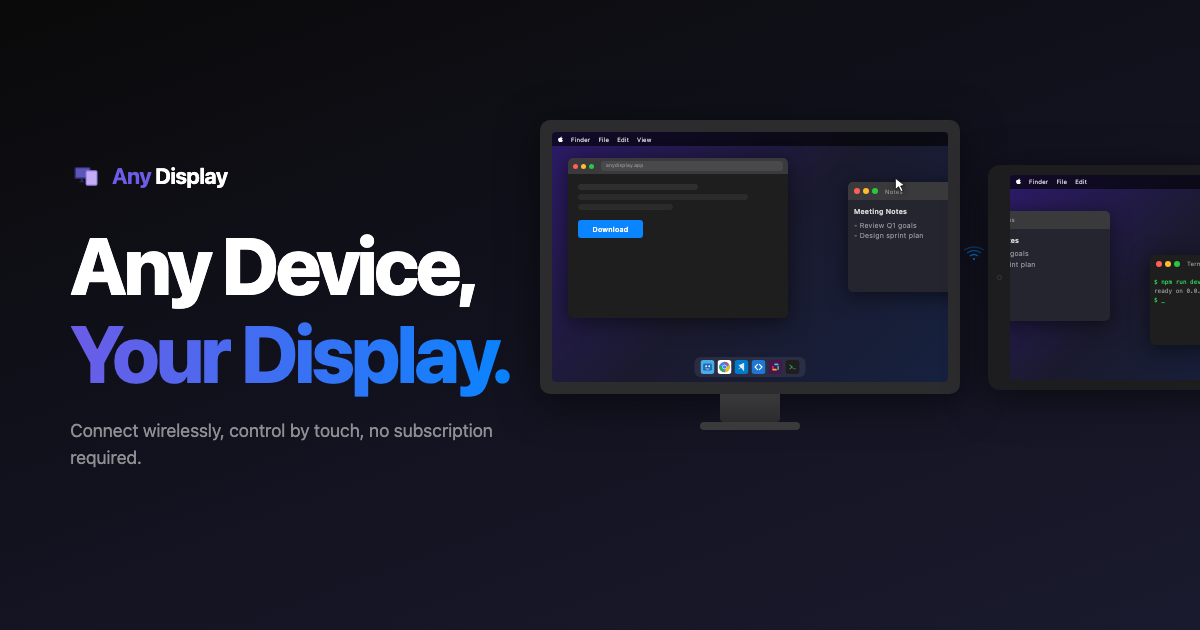
Any Display turns your iPad or Android tablet into a secondary monitor for macOS and Windows. Connect wirelessly over Wi-Fi for a cable-free experience, or plug in a USB cable for wired-monitor-level responsiveness. No extra hardware needed — just the devices you already own.
There have been other apps that tried to solve this problem, but most only work within the Apple ecosystem, or they lock you into a single operating system. If you use macOS at home and Windows at work, or if you switch between an iPad and an Android tablet depending on the day, your options have historically been slim. Any Display supports macOS, Windows, iPad (iOS 16+), and Android tablets — all of them, together.
Fast Enough to Feel Like a Real Monitor
The make-or-break factor for any display extension solution is latency. If dragging a window to your second screen feels sluggish, or if video playback stutters, the whole experience falls apart.
Any Display uses a native hardware encoding pipeline for extreme low latency. With a USB connection, latency drops below a single frame (16ms) — indistinguishable from a physical monitor. It leverages GPU hardware encoders directly — VideoToolbox on macOS, NVENC/AMF/QSV on Windows — eliminating software encoding bottlenecks and maintaining stable 60fps streaming.
Wi-Fi mode is smooth enough for everyday productivity, and plugging in a USB cable gives you wired-monitor responsiveness when you need it most.
HiDPI 2x scaling is also supported, so the output looks crisp on high-resolution tablet displays. Text stays sharp, icons stay clean, and everything renders at Retina quality.
Touch Input, Both Ways
One of the things that sets Any Display apart is bidirectional touch support. When you tap or swipe on your tablet screen, those gestures are sent directly to your PC. Your tablet becomes a touchscreen for macOS or Windows.
That opens up some genuinely useful workflows. Navigate Figma with your fingers while your mouse stays on the primary screen. Flip through presentation slides during a meeting without touching the keyboard. Use the tablet to scroll through long documents or dashboards. It's a natural interaction model that feels surprisingly fluid once you try it.
Zero-Config Connection
Getting started doesn't require a networking degree. Any Display uses Bonjour for automatic device discovery — the same protocol that makes printers and Apple TVs just appear on your network without any manual configuration.
As long as your Mac or PC and your tablet are on the same Wi-Fi network, they find each other automatically when the apps are open. No IP addresses to type, no ports to forward, no firewall rules to configure. You open the app, you see your device, you connect. That's it.
A Real Second Monitor, Not Just a Mirror
This is where Any Display pulls ahead of basic screen mirroring apps. Instead of simply duplicating what's already on your primary screen, Any Display creates a virtual DDC monitor — your computer thinks an actual external display is plugged in.
That means your operating system treats the tablet like a proper second screen. You can drag windows over to it independently, keep different apps on each display, and configure it through your normal display settings just like any other monitor. It's a true extended desktop experience, not a workaround.
Works Across Every Setup
Whether you're on macOS or Windows, using an iPad or an Android tablet — Any Display covers all of it. There's no ecosystem tax, no "this only works if you're all-in on Apple," no compromises based on what brand of device you happen to own.
That flexibility makes it the kind of tool that just fits into your life. Use your iPad at home, grab whatever tablet is handy at the office, take your laptop and a tablet to a co-working space and have a dual-monitor setup anywhere you go. The hardware is already in your bag.
Ready to Try It?
If you have a tablet you're not using to its full potential, Any Display gives it a new job — one that pays off in productivity every single day. No new hardware required, no complicated setup, just a better way to work.
Download Any Display at anydisplay.app and give your workflow the extra screen it deserves.